Installing sudoSignals
sudoSignals runs as a local process on your Windows computer. In order for Signals to monitor your applications, we need to install the local client.
Download sudoSignals
Here is the latest sudoSignals installer.
You should always use a sudoSignals client whose system version matches the major and minor version for the dashboard. For example, the client 1.0.1 is compatible with a dashboard 1.0.5; however a client with a version 1.1.1 would not be compatible with a dashboard 1.0.5. Versioning follows the pattern major.minor.patch - e.g. 1.0.1
Run the Installer
After downloading the installer, it's time to get sudoSignals up and running. Start by double clicking the installer.
Windows Protection
We're working on getting our Windows application publisher certificate. In the meantime, there's an extra step to getting the installer working.
You should see a warning from Windows about an application from an unknown publisher.
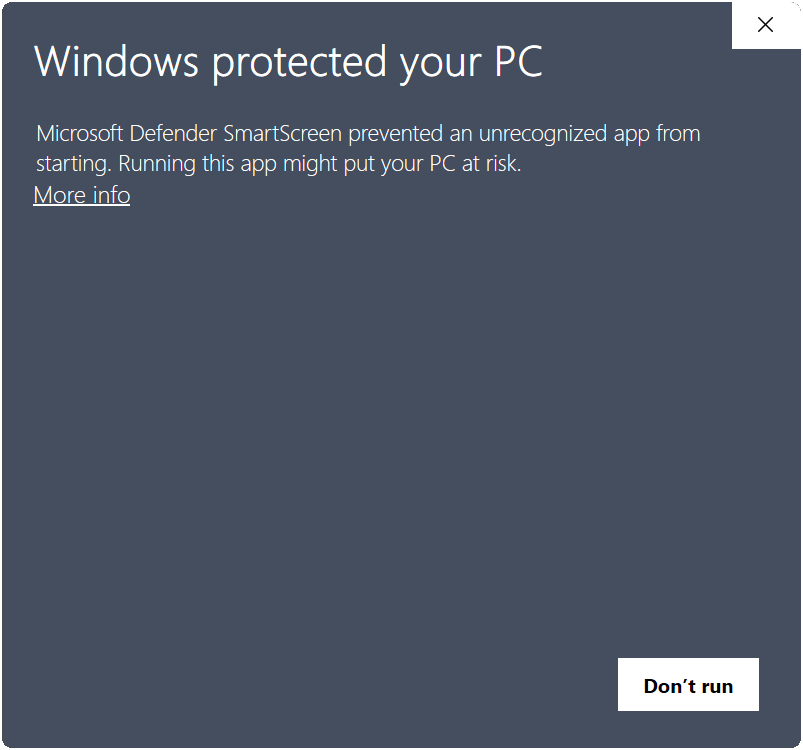
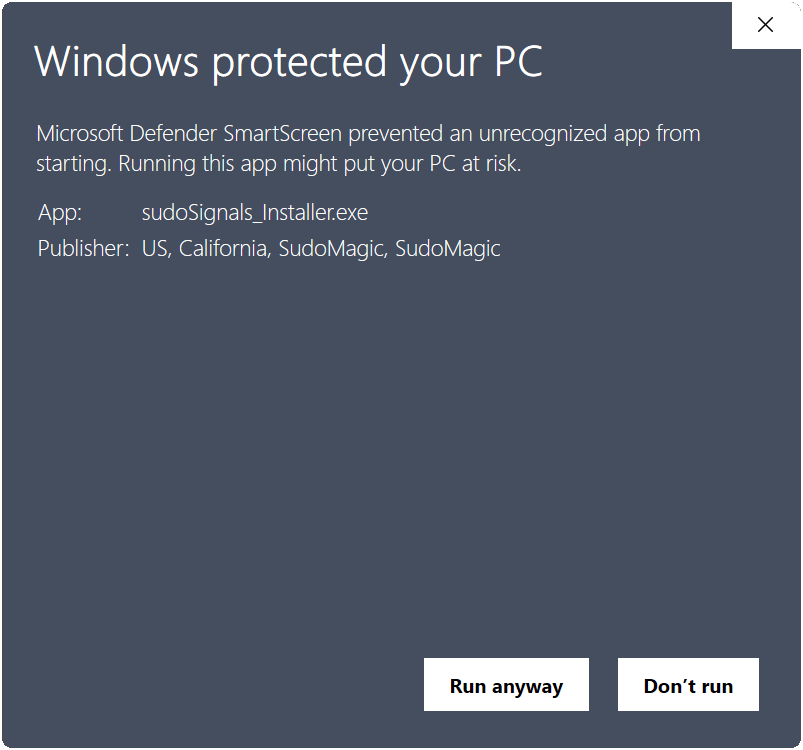
First click the link for More info, and then click Run anyway
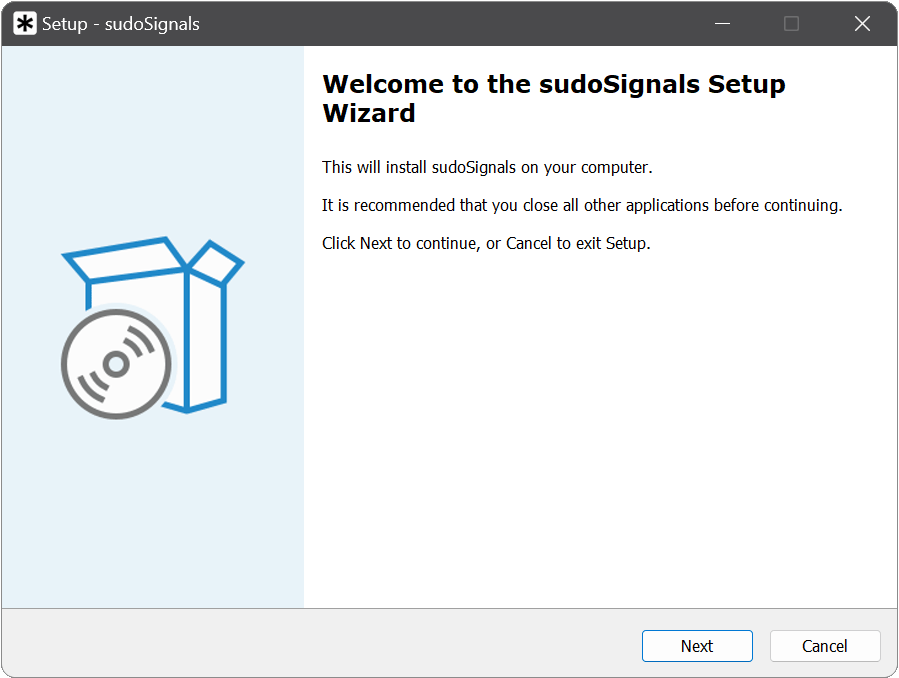
Welcome
You should then see the Welcome window of the Setup Wizard; begin the installation process by clicking Next.
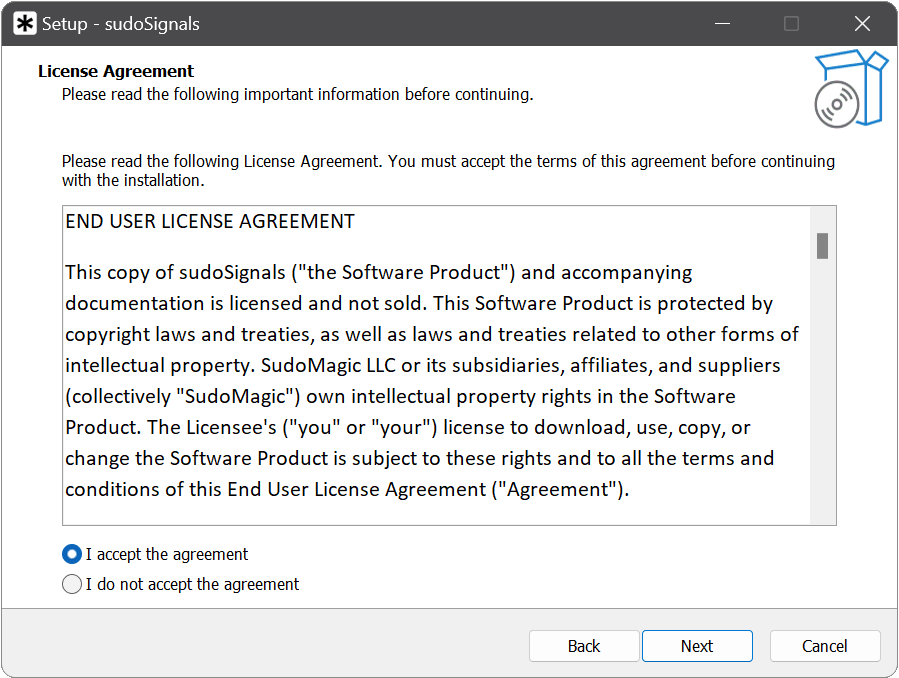
Accept the EULA
Signals has an end user licensing agreement, mark that you accept the agreement and then click Next.
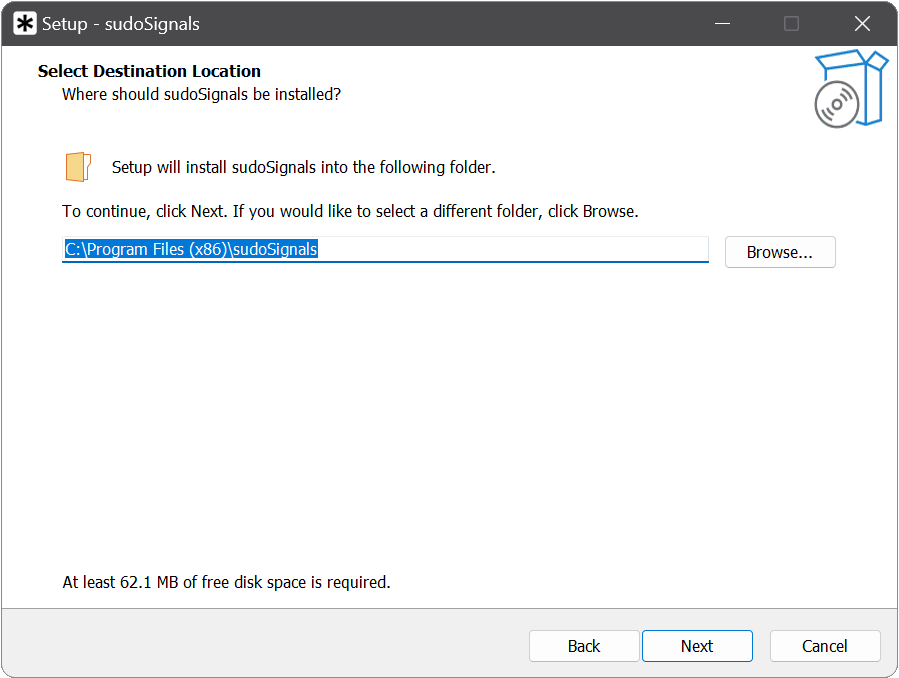
Select Installation Location
By default sudoSignals is installed in Program Files(x86)\SudoSignals
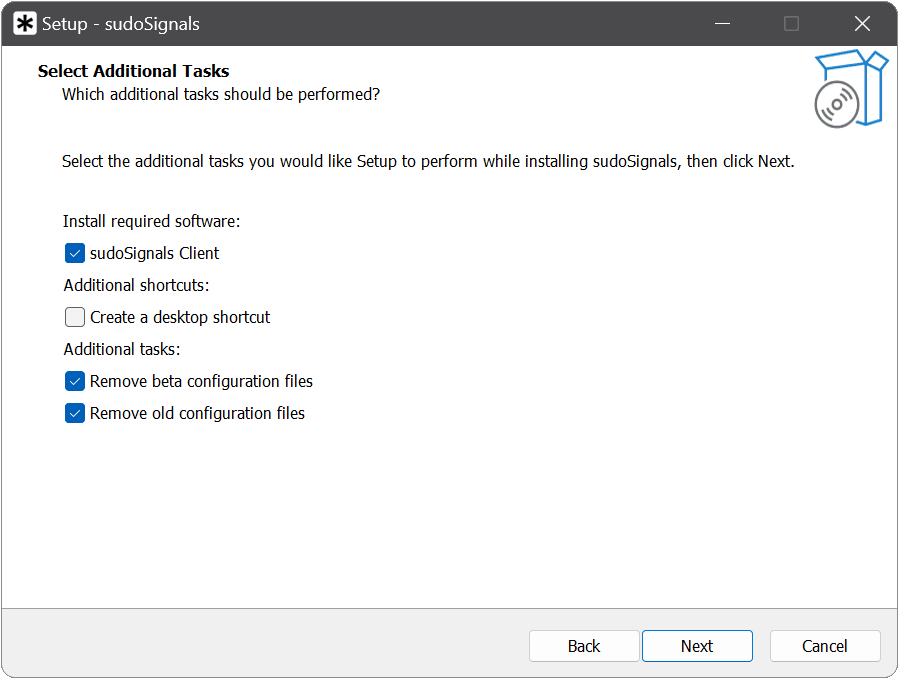
Additional Settings
There are some additional settings you can adjust when installing sudoSignals.
- sudoSignals Client is the control software that's required with this installation
- Create a desktop shortcut (optional)
- Remove beta config files - if you were a beta tester it is important to check this box
- Remove old configuration files - if you're installing a major Signals release this is an important box to check
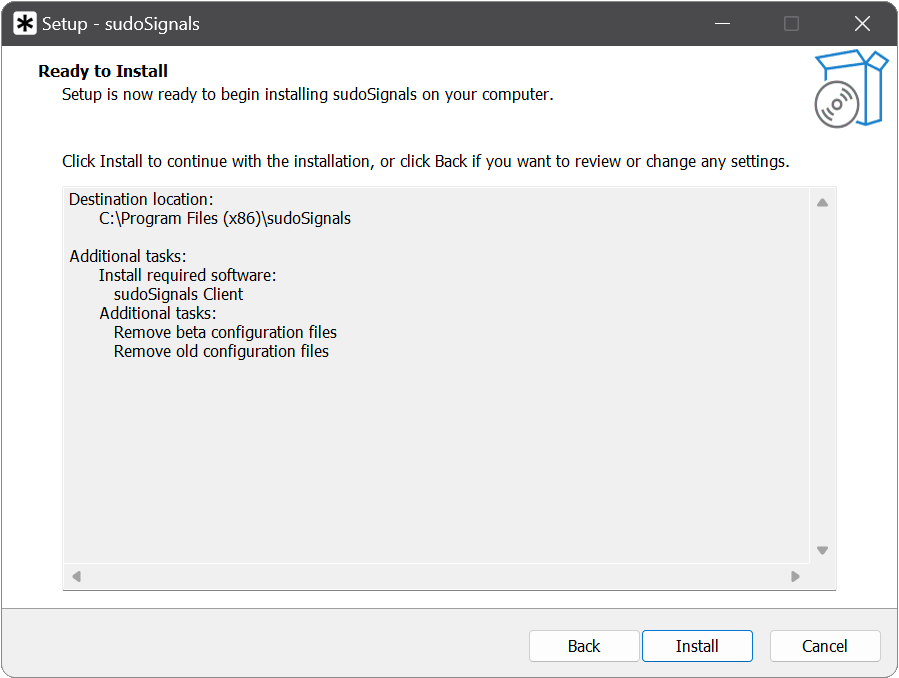
Install
Review the installer's settings and if everything looks correct, you can begin the installation process by clicking Install.
Finish
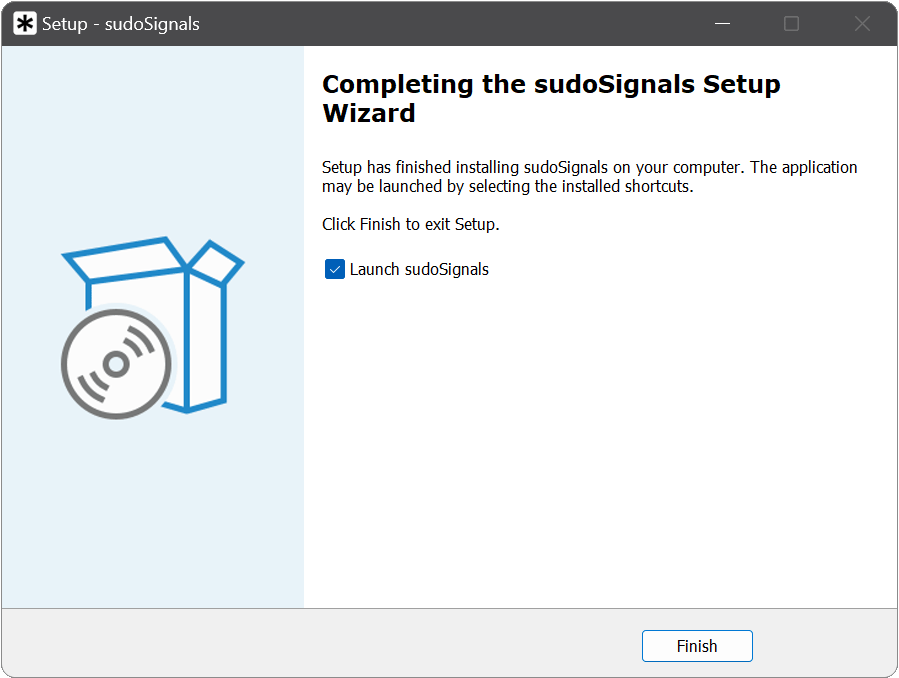
You can complete the Setup Wizard by clicking Finish. By default sudoSignals is configured to launch when installation is complete.
Finding Signals
If you've selected the Create a desktop shortcut option during setup, you can find a shortcut to sudoSignals on your desktop. You can also find Signals in the start menu.
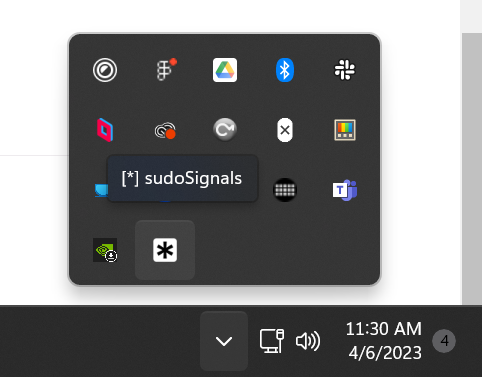
sudoSignals also includes a system tray icon. When sudoSignals is running you should see a system tray icon.